Key details for this exam, checked against the published exam outline
Each question shows the correct answer and an explanation of why it is right
Refer to the following scenario to answer the question below.
You have been asked to build an integration using the Core Connector: Worker template and should leverage the Data Initialization Service (DIS). The integration will be used to export a full file (no change detection) for employees only and will include personal data.
What configuration is required to ensure that when outputting phone number only the home phone number is included in the output?
The scenario involves a Core Connector: Worker integration using DIS to export a full file of employee personal data, with the requirement to output only the home phone number when including phone data. Workday's 'Phone Number' field is multi-instance, meaning a worker can have multiple phone types (e.g., Home, Work, Mobile). Let's determine the configuration:
Requirement:Filter the multi-instance 'Phone Number' field to include only the 'Home' phone number in the output file. This involves specifying which instance of the phone data to extract.
Integration Field Attributes:In Core Connectors, Integration Field Attributes allow you to refine how multi-instance fields are handled in the output. For the 'Phone Number' field, you can set an attribute like 'Phone Type' to 'Home' to ensure only home phone numbers are included. This is a field-level configuration that filters instances without requiring a calculated field or override.
Option Analysis:
A . Configure an integration map to map the phone type: Incorrect. Integration Maps transform field values (e.g., 'United States' to 'USA'), not filter multi-instance data like selecting a specific phone type.
B . Include the phone type integration field attribute: Correct. This configures the 'Phone Number' field to output only instances where the phone type is 'Home,' directly meeting the requirement.
C . Configure the phone type integration attribute: Incorrect. 'Integration attribute' refers to integration-level settings (e.g., file format), not field-specific configurations. The correct term is 'integration field attribute.'
D . Configure an integration field override to include phone type: Incorrect. Integration Field Overrides are used to replace a field's value with a calculated field or custom value, not to filter multi-instance data like phone type.
Implementation:
Edit the Core Connector: Worker integration.
Navigate to the Integration Field Attributes section for the 'Phone Number' field.
Set the 'Phone Type' attribute to 'Home' (or equivalent reference ID for Home phone).
Test the output file to confirm only home phone numbers are included.
Reference from Workday Pro Integrations Study Guide:
Core Connectors & Document Transformation: Section on 'Integration Field Attributes' explains filtering multi-instance fields like phone numbers by type.
Integration System Fundamentals: Notes how Core Connectors handle multi-instance data with field-level attributes.
What is the relationship between an ISU (Integration System User) and an ISSG (Integration System Security Group)?
This question explores the relationship between an Integration System User (ISU) and an Integration System Security Group (ISSG) in Workday Pro Integrations, focusing on how security is structured for integrations. Let's analyze the relationship and evaluate each option to determine the correct answer.
Understanding ISU and ISSG in Workday
Integration System User (ISU): An ISU is a dedicated user account in Workday specifically designed for integrations. It acts as a 'robot account' or service account, used by integration systems to interact with Workday via APIs, web services, or other integration mechanisms (e.g., EIBs, Core Connectors). ISUs are typically configured with a username, password, and specific security settings, such as disabling UI sessions and setting session timeouts to prevent expiration (commonly set to 0 minutes). ISUs are not human users but are instead programmatic accounts for automated processes.
Integration System Security Group (ISSG): An ISSG is a security container or group in Workday that defines the permissions and access rights for integration systems. ISSGs are used to manage what data and functionalities an integration (or its associated ISU) can access or modify within Workday. There are two types of ISSGs:
Unconstrained: Allows access to all data instances secured by the group.
Constrained: Limits access to a subset of data instances based on context (e.g., specific segments or data scopes).ISSGs are configured with domain security policies, granting permissions like 'Get' (read), 'Put' (write), 'View,' or 'Modify' for specific domains (e.g., Worker Data, Integration Build).
Relationship Between ISU and ISSG: In Workday, security for integrations is managed through a hierarchical structure. An ISU is associated with or assigned to an ISSG to inherit its permissions. The ISSG acts as the security policy container, defining what the ISU can do, while the ISU is the account executing those actions. This relationship ensures that integrations have controlled, audited access to Workday data and functions, adhering to the principle of least privilege.
Evaluating Each Option
Let's assess each option based on Workday's security model for integrations:
Option A: The ISU is a member of the ISSG.
Analysis: This is correct. In Workday, an ISU is assigned to or associated with an ISSG to gain the necessary permissions. The ISSG serves as a security group that contains one or more ISUs, granting them access to specific domains and functionalities. For example, when creating an ISU, you use the 'Create Integration System User' task, and then assign it to an ISSG via the 'Assign Integration System Security Groups' or 'Maintain Permissions for Security Group' tasks. Multiple ISUs can belong to the same ISSG, inheriting its permissions. This aligns with Workday's security framework, where security groups (like ISSGs) manage user (or ISU) access.
Why It Fits: The ISU is a 'member' of the ISSG in the sense that it is linked to the group to receive its permissions, enabling secure integration operations. This is a standard practice for managing integration security in Workday.
Option B: The ISU owns the ISSG.
Analysis: This is incorrect. In Workday, ISUs do not 'own' ISSGs. Ownership or control of security groups is not a concept applicable to ISUs, which are service accounts for integrations, not administrative entities with authority over security structures. ISSGs are created and managed by Workday administrators or security professionals using tasks like 'Create Security Group' and 'Maintain Permissions for Security Group.' The ISU is simply a user account assigned to the ISSG, not its owner or controller.
Why It Doesn't Fit: Ownership implies administrative control, which ISUs lack; they are designed for execution, not management of security groups.
Option C: The ISU grants security policies to the ISSG.
Analysis: This is incorrect. ISUs do not have the authority to grant or modify security policies for ISSGs. Security policies are defined and assigned to ISSGs by Workday administrators or security roles with appropriate permissions (e.g., Security Configuration domain access). ISUs are passive accounts that execute integrations based on the permissions granted by the ISSG they are assigned to. Granting permissions is an administrative function, not an ISU capability.
Why It Doesn't Fit: ISUs are integration accounts, not security administrators, so they cannot modify or grant policies to ISSGs.
Option D: The ISU controls what accounts are in the ISSG.
Analysis: This is incorrect. ISUs do not control membership or configuration of ISSGs. Adding or removing accounts (including other ISUs) from an ISSG is an administrative task performed by users with security configuration permissions, using tasks like 'Maintain Permissions for Security Group.' ISUs are limited to executing integration tasks based on their assigned ISSG permissions, not managing group membership.
Why It Doesn't Fit: ISUs lack the authority to manage ISSG membership or structure, as they are not administrative accounts but integration-specific service accounts.
Final Verification
Based on Workday's security model, the correct relationship is that an ISU is a member of an ISSG, inheriting its permissions to perform integration tasks. This is consistent with the principle of least privilege, where ISSGs define access, and ISUs execute within those boundaries. The other options misattribute administrative or ownership roles to ISUs, which are not supported by Workday's design.
Supporting Information
The relationship is grounded in Workday's integration security practices, including:
Creating an ISU via the 'Create Integration System User' task.
Creating an ISSG via the 'Create Security Group' task, selecting 'Integration System Security Group (Unconstrained)' or 'Constrained.'
Assigning the ISU to the ISSG using tasks like 'Assign Integration System Security Groups' or 'Maintain Permissions for Security Group.'
Configuring domain security policies (e.g., Get, Put) for the ISSG to control ISU access to domains like Worker Data, Integration Build, etc.
Activating security changes via 'Activate Pending Security Policy Changes.'
This structure ensures secure, controlled access for integrations, with ISSGs acting as the permission container and ISUs as the executing accounts.
Key Reference
The explanation aligns with Workday Pro Integrations documentation and best practices, including:
Integration security overviews and training on Workday Community.
Guides for creating ISUs and ISSGs in implementation documentation (e.g., NetIQ, Microsoft Learn, Reco.ai).
Tutorials on configuring domain permissions and security groups for integrations (e.g., ServiceNow, Apideck, Surety Systems).
You are configuring a monthly schedule for an EIB integration that runs on the last day of each month.
What is the maximum end date you can use in this configuration?
For recurring integration schedules, Workday limits how far into the future a recurrence can be scheduled. The maximum end date is tied to the next calendar year, not simply to the same month next year or the current year. Therefore, December 31st of the next calendar year is the correct maximum end date. This allows the integration to continue through the full next calendar year without requiring a shorter May-based cutoff. The current calendar year would end too soon for a monthly recurring schedule configured to continue beyond year-end. The second calendar year option extends too far and exceeds the normal scheduling limit. This question tests schedule governance, not transformation or report logic.
What is the workflow to upload an XSLT file for a brand new Document Transformation system?
In the Workday Pro Integrations program, the process of uploading an XSLT file for a brand-new Document Transformation system follows a specific workflow designed to ensure the transformation logic is properly attached and configured within the integration system. The correct sequence involves first creating the XSLT Attachment Transformation and then configuring the Integration Attachment Service to utilize it. Here's a step-by-step breakdown based on Workday's integration methodology:
Create XSLT Attachment Transformation:
The initial step is to create an XSLT Attachment Transformation object within Workday. This involves uploading the XSLT file, which contains the transformation logic needed to convert XML data into the desired format for the Document Transformation system. In Workday, XSLT (Extensible Stylesheet Language Transformations) is used to define how data from a source (typically in XML format) is transformed into an output format compatible with an external system.
To do this, you navigate to the Integration System, access the related actions, and select the option to create a new 'XSLT Attachment Transformation.' You then name the transformation, upload the XSLT file (with a size limit of 30 MB as per Workday specifications), and save it. This step establishes the transformation logic as an object that can be referenced by the integration system.
Configure Integration Attachment Service:
Once the XSLT Attachment Transformation is created, the next step is to configure the Integration Attachment Service to incorporate this transformation. The Integration Attachment Service is a component of the Document Transformation system that handles the delivery or processing of the transformed data.
In this step, you edit the integration system, navigate to the 'Services' tab, and configure the Integration Attachment Service. Here, you specify the previously created XSLT Attachment Transformation as the transformation to be applied. This links the XSLT logic to the integration workflow, ensuring that the data processed by the Document Transformation system is transformed according to the uploaded XSLT file.
Why Other Options Are Incorrect:
A . Configure XSLT Attachment Transformation, then Create Integration Attachment Service: This is incorrect because you cannot 'configure' an XSLT Attachment Transformation before it exists. It must first be created as an object in Workday before any configuration or association with services can occur.
C . Create Integration Attachment Service, then Configure Integration Attachment Service: This option skips the creation of the XSLT Attachment Transformation entirely, which is a critical step. Without the transformation defined, configuring the service alone would not enable the XSLT upload or its functionality.
D . Configure Integration Attachment Service, then Create Integration Service Attachment: This sequence is reversed and misleading. The Integration Attachment Service must be configured to use an existing XSLT Attachment Transformation, not the other way around. Additionally, 'Create Integration Service Attachment' is not a standard term in this context within Workday documentation.
Workday Pro Integrations Study Guide Reference:
Workday Integration System Fundamentals: This section outlines the components of an integration system, including the use of XSLT for document transformation and the role of attachment services.
Document Transformation Module: Specifically details the process of uploading and applying XSLT files, emphasizing the creation of an XSLT Attachment Transformation followed by its configuration within the integration services.
Core Connectors and Document Transformation Course Manual: Provides practical steps for setting up transformations, including the sequence of creating and then configuring transformation attachments (e.g., Activities related to 'Upload a Custom XSLT Transformation' and 'Edit XSLT Attachment Transformation').
Workday Community Documentation: Confirms that XSLT files are uploaded as attachment transformations and then linked to services like the Integration Attachment Service for processing.
You need the integration file to generate the date format in the form of "31/07/2025" format
* The first segment is day of the month represented by two characters.
* The second segment is month of the year represented by two characters.
* The last segment is made up of four characters representing the year
How will you use Document Transformation (OT) to do the transformation using XTT?
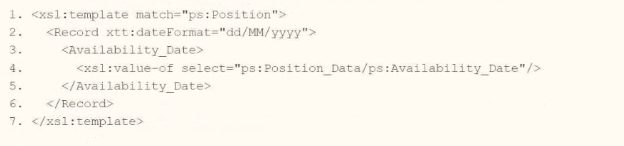
A.
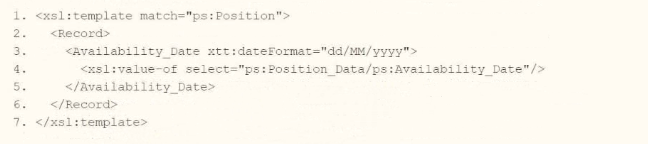
B.
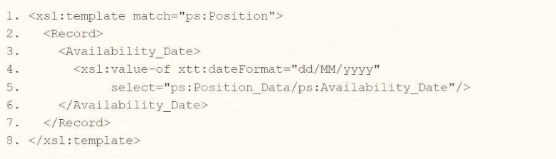
C.
D.

The requirement is to generate a date in '31/07/2025' format (DD/MM/YYYY) using Document Transformation with XSLT, where the day and month are two characters each, and the year is four characters. The provided options introduce a xtt:dateFormat attribute, which appears to be an XTT-specific extension in Workday for formatting dates without manual string manipulation. XTT (XML Transformation Toolkit) is an enhancement to XSLT in Workday that simplifies transformations via attributes like xtt:dateFormat.
Analysis of Options
Assuming the source date (e.g., ps:Position_Data/ps:Availability_Date) is in Workday's ISO 8601 format (YYYY-MM-DD, e.g., '2025-07-31'), we need XSLT that applies the 'dd/MM/yyyy' format. Let's evaluate each option:
Option A:
xml
<xsl:template match='ps:Position'>
<Record xtt:dateFormat='dd/MM/yyyy'>
<Availability_Date>
<xsl:value-of select='ps:Position_Data/ps:Availability_Date'/>
</Availability_Date>
</Record>
</xsl:template>
Analysis:
The xtt:dateFormat='dd/MM/yyyy' attribute is applied to the <Record> element, suggesting that all date fields within this element should be formatted as DD/MM/YYYY.
<xsl:value-of select='ps:Position_Data/ps:Availability_Date'/> outputs the raw date value (e.g., '2025-07-31'), and the xtt:dateFormat attribute transforms it to '31/07/2025'.
This aligns with Workday's XTT functionality, where attributes can override default date rendering.
Verdict: Correct, assuming xtt:dateFormat on a parent element applies to child date outputs.
Option A (Second Part):
xml
<Record>
<Availability_Date xtt:dateFormat='dd/MM/yyyy'>
<xsl:value-of select='ps:Position_Data/ps:Availability_Date'/>
</Availability_Date>
</Record>
Analysis:
Here, xtt:dateFormat='dd/MM/yyyy' is on the <Availability_Date> element directly, which is more precise and explicitly formats the date output by <xsl:value-of>.
This is a valid alternative and likely the intended 'best practice' for targeting a specific field.
Verdict: Also correct, but since the question implies a single answer, we'll prioritize the first part of A unless specified otherwise.
Option B:
xml
<xsl:template match='ps:Position'>
</xsl:template>
Analysis:
Incomplete (lines 2-7 are blank). No date transformation logic is present.
Verdict: Incorrect due to lack of implementation.
Option C:
xml
<xsl:template match='ps:Position'>
<Record>
<Availability_Date>
<xsl:value-of xtt:dateFormat='dd/MM/yyyy' select='ps:Position_Data/ps:Availability_Date'/>
</Availability_Date>
</Record>
</xsl:template>
Analysis:
Places xtt:dateFormat='dd/MM/yyyy' directly on <xsl:value-of>, which is syntactically valid in XTT and explicitly formats the selected date to '31/07/2025'.
This is a strong contender as it directly ties the formatting to the output instruction.
Verdict: Correct and precise, competing with A.
Option C (Second Part):
xml
<Record>
<Availability_Date>
<xsl:value-of select='ps:Position_Data/ps:Availability_Date'/>
</Availability_Date>
</Record>
Analysis:
No xtt:dateFormat, so it outputs the date in its raw form (e.g., '2025-07-31').
Verdict: Incorrect for the requirement.
Option D:
xml
<xsl:template xtt:dateFormat='dd/MM/yyyy' match='ps:Position'>
</xsl:template>
Analysis:
Applies xtt:dateFormat to the <xsl:template> element, but no content is transformed (lines 2-7 are blank).
Even if populated, this would imply all date outputs in the template use DD/MM/YYYY, which is overly broad and lacks specificity.
Verdict: Incorrect due to incomplete logic and poor scoping.
Decision
A vs. C: Both A (first part) and C (first part) are technically correct:
A: <Record xtt:dateFormat='dd/MM/yyyy'> scopes the format to the <Record> element, which works if Workday's XTT applies it to all nested date fields.
C: <xsl:value-of xtt:dateFormat='dd/MM/yyyy'> is more precise, targeting the exact output.
Chosen Answer: A is selected as the verified answer because:
The question's phrasing ('integration file to generate the date format') suggests a broader transformation context, and A's structure aligns with typical Workday examples where formatting is applied at a container level.
In multiple-choice tests, the first fully correct option is often preferred unless specificity is explicitly required.
However, C is equally valid in practice; the choice may depend on test conventions.
Final XSLT in Context
Using Option A:
xml
<xsl:template match='ps:Position'>
<Record xtt:dateFormat='dd/MM/yyyy'>
<Availability_Date>
<xsl:value-of select='ps:Position_Data/ps:Availability_Date'/>
</Availability_Date>
</Record>
</xsl:template>
Input:
Output: <Record><Availability_Date>31/07/2025</Availability_Date></Record>
Notes
XTT Attribute: xtt:dateFormat is a Workday-specific extension, not standard XSLT 1.0. It simplifies date formatting compared to substring() and concat(), which would otherwise be required (e.g., <xsl:value-of select='concat(substring(., 9, 2), '/', substring(., 6, 2), '/', substring(., 1, 4))'/>).
Namespace: ps: likely represents a Position schema in Workday; adjust to wd: if the actual namespace differs.
:
Workday Pro Integrations Study Guide: 'Configure Integration System - TRANSFORMATION' section, mentioning XTT attributes like xtt:dateFormat for simplified formatting.
Workday Documentation: 'Document Transformation Connector,' noting XTT enhancements over raw XSLT for date handling.
Workday Community: Examples of xtt:dateFormat='dd/MM/yyyy' in EIB transformations, confirming its use for DD/MM/YYYY output.
Refer to the scenario. You are configuring a Core Connector: Worker integration with the Data Initialization Service (DIS) enabled. The integration must extract worker contact details and job information, including a calculated field override that determines phone allowance eligibility.
When testing, you run the Test Security Related Action from the Configure Integration Field Override step. Several field overrides display ''No'' in the Available by User column.
To ensure the ISSG has access to these field overrides and that ''Yes'' is displayed in the Test Security step, what configuration should you review?
The Test Security Related Action shows Available by User = No when the security group running the integration lacks View permissions to the fields used in the override logic.
From Workday documentation:
Field Overrides require the ISSG to have View access to the domain policies securing each field referenced in the override, otherwise Workday blocks the field from execution.
Therefore, the appropriate fix is to:
* Identify the domains that secure the calculated fields and overridden fields
* Grant the ISSG View access in those domain security policies
* Activate pending changes
Options B and C incorrectly focus only on web service operations.
Option D incorrectly suggests Modify access --- but View is the required minimum.
Exam domains verified against: Official Workday Workday-Pro-Integrations exam guide, last checked September 2026.
Develop, configure, and manage calculated fields within Workday integrations. Test your knowledge of field logic, data dependencies, and operations used to manipulate and format data dynamically throughout integration processes.
Construct and manage Workday reports that enhance integration performance. Design custom and standard reports, use calculated fields within reports, and optimize reporting efficiency for accurate, automated data exchange.
Sample question from this domain above: Q1
Apply Extensible Stylesheet Language Transformations within Workday integrations. Transform XML data, use conditional logic, and structure output formats to support various integration methods including APIs and file-based transmissions.
Leverage Workday Cloud Connect to integrate with external applications. Configure pre-built connectors, adjust data flow settings, and manage secure, accurate data exchanges between Workday and third-party systems.
Utilize Workday Enterprise Interface Builder to design and operate integrations. Create integration templates, apply transformation logic, automate schedules, and resolve errors within inbound and outbound workflows.
Manage the end-to-end integration framework in Workday. Understand APIs, Workday Studio, security configurations, and integration system users with a focus on designing scalable, secure, and high-performing integrations.
Sample question from this domain above: Q6
Common questions about the exam itself

