Key details for this exam, checked against the published exam outline
Each question shows the correct answer and an explanation of why it is right
You have a Storage Spaces Direct configuration that has persistent memory and contains the data volumes shown in the following table: Volume1 (NTFS), Volume2 (ReFS). You plan to add data volumes to Storage Spaces Direct as shown in the following table: Volume3 (NTFS), Volume4 (ReFS). On which volumes can you use direct access (DAX)?
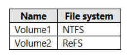
Existing data volumes
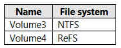
Planned data volumes
Direct access (DAX) mode for persistent memory volumes in Storage Spaces Direct is supported only in combination with the NTFS file system; a persistent memory volume formatted with ReFS can only be used in block access mode, not DAX mode, regardless of when that volume was created. Volume1 and Volume3 are formatted with NTFS, while Volume2 and Volume4 are formatted with ReFS, so DAX is available on Volume1 and Volume3 and is not available on Volume2 or Volume4. Because file system type -- rather than whether a volume is part of the existing deployment or a newly planned addition -- is the determining factor for DAX eligibility, both the currently deployed NTFS volume (Volume1) and the newly planned NTFS volume (Volume3) qualify for DAX. This NTFS-only restriction for DAX, contrasted with block access mode's support for both NTFS and ReFS, is a core planning consideration whenever persistent memory is deployed with Storage Spaces Direct. Therefore, Volume1 and Volume3 only is the correct answer.
You have a three-node failover cluster. You need to run pre-scripts and post-scripts when Cluster-Aware Updating (CAU) runs. The solution must minimize administrative effort. What should you use?
Cluster-Aware Updating supports the -PreUpdateScript and -PostUpdateScript parameters on Invoke-CauRun, and these settings, along with every other CAU configuration option such as the maximum retries per node and the update categories to apply, can be saved together into a single reusable updating run profile, which is stored as an XML file. Once a run profile has been created and is referenced using the -CauPluginArguments or -RunProfile parameter on a subsequent CAU run, or configured as the default profile for self-updating mode, every future CAU run automatically applies the same pre- and post-update scripts without the administrator needing to re-specify them each time, which is precisely what minimizing administrative effort for this recurring maintenance task looks like. Scheduled tasks have no built-in awareness of cluster node draining, pausing, or update orchestration and would require substantial custom scripting to coordinate safely, WSUS only manages which updates are approved for distribution and has no scripting hook into CAU's node lifecycle at all, and Azure Functions is a cloud compute service entirely unrelated to on-premises CAU orchestration. Therefore, run profiles are the correct answer.
Note: This question is part of a series of questions that present the same scenario. Each question in the series contains a unique solution that might meet the stated goals. Some question sets might have more than one correct solution, while others might not have a correct solution. After you answer a question in this section, you will NOT be able to return to it. As a result, these questions will not appear in the review screen. You have a failover cluster named Cluster1 that hosts an application named App1. The General tab in App1 Properties is shown in the General exhibit. (Click the General tab.) The Failover tab in App1 Properties is shown in the Failover exhibit. (Click the Failover tab.) Server2 shuts down unexpectedly. You need to ensure that when you start Server2, App1 continues to run on Server2. Solution: You pause the Server1 node in Cluster1 and then start Server1. Does this meet the goal?
The General tab for App1 shows that its Preferred Owners list has no nodes selected at all, and the Failover tab shows Allow failback set to Immediately, but the Allow failback setting only has any practical effect once a most-preferred owner node has actually been defined in the Preferred Owners list; with that list empty, the cluster has no designated target node to fail the role back to, regardless of how the failback timing is configured. After Server2's unexpected shutdown, App1 is presumably now running on Server1, since Server1 is the surviving node in this two-node scenario. Pausing the Server1 node, which is the node currently running App1, and then simply starting Server1 again does nothing to move App1 back onto Server2 once Server2 is restarted, because pausing a node only prevents new roles from being placed onto it while it is paused; it does not trigger any existing role to move away from that node, nor does it configure any preferred-owner relationship that would drive App1 back to Server2. To actually meet the stated goal, Server2 would need to be explicitly configured as the preferred owner for App1 so that automatic failback has a defined target once Server2 comes back online, and that configuration change is not what this solution performs.
You have a server that runs Windows Server 2025 Standard and has the Hyper-V role installed. You need to upgrade the server to Windows Server 2025 Datacenter. The solution must minimize downtime. What should you run?
Windows Server lets you change a server's edition in place using DISM with the /Set-Edition (or /Online /Set-Edition) option and a valid edition key, which upgrades Standard to Datacenter without requiring a full reinstall and needs only a single restart to complete, minimizing downtime for the Hyper-V host and preserving its running virtual machines and configuration. Setup.exe would perform a full in-place OS upgrade rather than an edition change, which is unnecessary and far more disruptive when the OS version itself is not changing, slmgr.vbs manages license activation rather than edition conversion, and convert.exe is unrelated (it converts file systems). DISM is Microsoft's documented tool for this specific Standard-to-Datacenter edition upgrade scenario, and running DISM /Online /Set-Edition:ServerDatacenter /ProductKey:
Your network contains an Active Directory Domain Services (AD DS) domain. The domain contains the servers shown in the following table. Server1 contains the printers shown in the following table. You plan to use Print Management to migrate the printers to Server2. Which printers can be migrated and retain their current configuration? (Exhibits: servers table and printers table.)
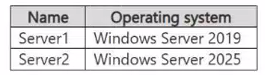
Servers
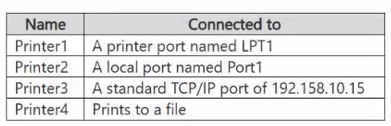
Printers on Server1
The Print Management migration wizard, built on printbrm.exe, documents that local bus printers, meaning printers connected through ports such as LPT or a locally attached USB-style port, are shown and processed during the backup step of the migration but are not successfully migrated to a working configuration on the destination server, because the physical port itself does not exist or map meaningfully on Server2. Printer1, connected through LPT1, and Printer2, connected through the similarly local, non-network Port1, both fall into this unsupported local-bus category and cannot be relied on to retain a working configuration after the move to Server2. Printer3, connected through a standard TCP/IP port pointing at a specific network address, is a fully network-addressable print queue whose port definition is meaningful on any print server, including Server2, so it migrates cleanly with its driver, queue settings, and configuration intact. Printer4, which uses the built-in FILE: port to print to a file rather than to physical hardware, is a virtual, hardware-independent port that is present identically on every Windows print server, so it too migrates without issue. Because printer drivers, queue settings, and port/configuration details only transfer meaningfully for ports that exist and behave identically on the target server, only Printer3 and Printer4 retain their current configuration after migrating to Server2.
Your network contains an on-premises Active Directory Domain Services (AD DS) domain named contoso.com. You have an Azure virtual network named VNet1 that is connected to the on-premises network by using a Site-to-Site (S2S) VPN. VNet1 contains a domain-joined virtual machine named VM1 that hosts an application named App1. App1 uses Kerberos authentication and updates objects in AD DS. An Azure Firewall filters communication from VM1 to the domain controllers in contoso.com. You need to deploy domain controllers to VNet1. The solution must support the requirements of VM1 and provide domain controller redundancy in Azure. What should you deploy?
App1's requirement to update objects in AD DS as part of its Kerberos-authenticated operation rules out any deployment built solely on read-only domain controllers (RODCs), because an RODC holds a read-only copy of the AD DS database and cannot accept or process write operations, such as the object updates App1 performs or password changes tied to Kerberos ticket processing; only a writable domain controller can service those requests, immediately eliminating both RODC-based options regardless of how they are made redundant. Between the two writable-DC options, deploying the two writable domain controller virtual machines across availability zones provides genuine redundancy within the same Azure region and VNet, keeping both DCs on the same low-latency virtual network VM1 already reaches through the Azure Firewall, so a zone failure still leaves a writable, reachable DC online for App1; placing the two writable DCs in physically distinct Azure regions instead would require extending VNet1's connectivity (and the Azure Firewall's filtering) across regions and introduces materially higher replication latency between the two DCs, which the scenario's single-VNet, single-firewall design does not call for or support. Deploying two writable domain controller virtual machines across availability zones therefore both satisfies VM1's write requirement and provides the requested redundancy with the least architectural disruption.
Exam domains verified against: Official Microsoft AZ-802 exam guide, last checked September 2026.
Create and manage domain controllers in both on-premises and Azure environments, configure multi-site and multi-domain structures, and manage security principals. RODCs, FSMO roles, and trust relationships are core to this domain as it forms the foundation of Windows Server hybrid administration.
Sample question from this domain above: Q6
Configure remote management via PowerShell, SSH, and Windows Admin Center across on-premises and Azure. Implement Azure Arc for device configuration and updates, deploy Azure services to non-Azure machines using VM extensions, and use Azure Automation runbooks to manage workloads at scale.
Administer Hyper-V guests with Enhanced Session Mode, PowerShell Direct, and device assignment. Deploy Windows Server VMs in Azure with proper storage, networking, and availability configurations including availability sets, zones, and JIT access.
Integrate DNS with AD DS, create DNS zones and records, configure forwarding and DNSSEC, and troubleshoot name resolution in hybrid environments. Implement and manage DHCP scopes, IP reservations, and high availability across on-premises and cloud boundaries.
Configure and manage Azure Files and File Sync including permissions and DFS migration. Set up Windows Server file shares with FSRM and SMB over QUIC, implement Storage Spaces Direct, Storage Replica, and Data Deduplication. Manage encryption, iSCSI, and file system selection including NTFS and ReFS.
Sample question from this domain above: Q1
Implement OS security via exploit protection, Application Control, Credential Guard, and Windows Defender SmartScreen. Secure AD DS with password policies, Microsoft Entra Password Protection, protected users, and hardened domain controllers. Manage Firewall, authentication protocols, and AD delegation.
Sample question from this domain above: Q3
Use Performance Monitor, data collector sets, and Windows Admin Center alerts to track server health. Analyze System Insights, manage event logs, and create Azure Monitor data collection rules. Troubleshoot connectivity, name resolution, Windows Update, storage issues, AD replication, and Kerberos authentication failures.
Common questions about the exam itself

