Key details for this exam, checked against the published exam outline
Each question shows the correct answer and an explanation of why it is right
Your organization is planning to expand its data center capacity and must configure a new PowerMax 2500 system. The goal is to ensure high performance and sea abi ity Whi e maintaining redundancy
Which configuration option is specific to the PowerMax 2500 system?
Step by Step Comprehensive Detailed
The Dell PowerMax 2500 is a mid-range storage array designed for enterprise environments. It offers a balance of performance, capacity, and scalability.
Scalability: The PowerMax 2500 scales from a single node pair to a maximum of two node pairs. This allows for increased performance and capacity as needed. Each node pair provides processing power, cache memory, and connectivity.
Why other options are incorrect:
A . Supports up to 16 nodes: This is incorrect. The PowerMax 8500, the higher-end model, supports up to 16 nodes.
B . Supports up to 15 PB of effective capacity: While the PowerMax 2500 offers significant capacity, its maximum effective capacity is lower than 15 PB.
D . Uses Storage Class Memory: Both the PowerMax 2500 and 8500 utilize Storage Class Memory (SCM) for enhanced performance.
Reference and documents of Dell's public documentation for PowerMax Operate v.2:
Dell PowerMax 2500 Hardware Information Guide: This guide provides detailed technical specifications for the PowerMax 2500, including its scalability options, node configurations, and capacity limits. You can find this document on the Dell Support website by searching for 'PowerMax 2500 Hardware Information Guide.'
Dell PowerMax Family: Essentials and Best Practices Guide: This guide offers a general overview of the PowerMax family, including the 2500 and 8500 models. It highlights the key differences in scalability and performance between the two models.
Refer to the exhibit.
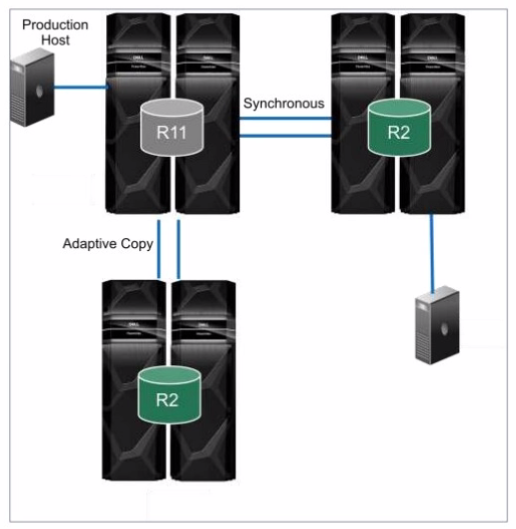
What is the topology shown1?
Step by Step Comprehensive Detailed
The topology shown in the exhibit depicts Cascaded SRDF. This SRDF configuration involves three storage arrays (or sites) connected in a chained or cascaded manner.
Here's how it works:
Primary Site (R1): The production host is connected to the primary storage array (R1).
Intermediate Site (R2): The primary array (R1) synchronously replicates data to an intermediate array (R2).
Remote Site (R2): The intermediate array (R2) then asynchronously replicates data to a remote array (also labeled R2 in the diagram).
This cascading setup provides a multi-hop disaster recovery solution, where data is first replicated synchronously to a nearby site for high availability and then asynchronously replicated to a further remote site for disaster recovery.
Why other options are incorrect:
B . SRDF/Star: SRDF/Star involves a central array replicating to multiple remote arrays in a star-like pattern.
C . SRDF/Metro: SRDF/Metro is designed for synchronous replication over short distances, typically within a metropolitan area.
D . Concurrent SRDF: Concurrent SRDF allows multiple SRDF relationships to exist simultaneously for the same device.
Reference and documents of Dell's public documentation for PowerMax Operate v.2:
Dell Solutions Enabler 10.0.0 SRDF Family CLI User Guide: This guide provides detailed information about different SRDF configurations, including Cascaded SRDF. You can find this document on the Dell Support website by searching for 'Solutions Enabler SRDF Family CLI User Guide.'
Dell PowerMax Family: Essentials and Best Practices Guide: This guide offers a comprehensive overview of SRDF and its functionalities, including various topologies and use cases.
From an application perspective, what should be done before performing an SRDF/S Restore operation?
Step by Step Comprehensive Detailed
Before performing an SRDF/S (synchronous) Restore operation, it is crucial to stop all host I/O activity to both the R1 (source) and R2 (target) devices. This ensures data consistency and prevents potential data loss or corruption during the restore process.
Here's why:
Data Integrity: An SRDF/S Restore operation involves copying data from the R1 device to the R2 device, overwriting any existing data on R2. If hosts are actively accessing and modifying data on either device during this process, it can lead to inconsistencies and data integrity issues.
Synchronization: SRDF/S maintains real-time synchronization between the R1 and R2 devices. 1 Performing a Restore operation while hosts are writing data can disrupt this synchronization and lead to unpredictable results.
Why other options are incorrect:
A . Continue accessing the R1 devices. Stop accessing the R2 devices: This would leave R1 vulnerable to data inconsistencies.
B . Stop accessing the R1 devices. Continue accessing the R2 devices: This would make R2 susceptible to data loss or corruption.
D . Continue accessing the R1 and R2 devices: This is the most dangerous option, as it would likely lead to data integrity issues.
Reference and documents of Dell's public documentation for PowerMax Operate v.2:
Dell Solutions Enabler 10.0.0 SRDF Family CLI User Guide: This guide provides detailed information about SRDF operations, including Restore. It emphasizes the importance of halting host I/O before performing such operations to ensure data consistency. You can find this document on the Dell Support website by searching for 'Solutions Enabler SRDF Family CLI User Guide.'
Dell PowerMax Family: Essentials and Best Practices Guide: This guide may offer general information about SRDF management and best practices, which would include recommendations for performing operations like Restore safely.
Which tasks can a storage administrator manage from the Data Protection menu in the Unisphere for PowerMax?
Step by Step Comprehensive Detailed
The 'Data Protection' menu in Unisphere for PowerMax provides a centralized location for managing various data protection features and functionalities. Specifically, it allows storage administrators to:
Configure and manage SRDF groups: SRDF (Symmetrix Remote Data Facility) is a key technology for disaster recovery and data replication in PowerMax. The Data Protection menu enables administrators to create, modify, and monitor SRDF groups, establish replication relationships between devices, and control replication settings.
Why other options are incorrect:
A . Convert front-end ports to SRDF ports: This is typically done through the 'System > Hardware' or 'Connectivity' sections of Unisphere, where port configurations are managed.
C . Configure Data Protection for z Systems: While PowerMax supports mainframe environments, the specific configuration for z Systems might involve specialized tools or interfaces.
D . Review the audit log for unwanted logins: Audit logs and security-related events are usually found in the 'Monitoring' or 'Security' sections of Unisphere.
Reference and documents of Dell's public documentation for PowerMax Operate v.2:
Dell Unisphere for PowerMax 10.0.0 Online Help: The online help for Unisphere provides a detailed explanation of the functionalities available in each menu, including the Data Protection menu. You can access this help within Unisphere itself or on the Dell Support website.
Dell PowerMax Family: Essentials and Best Practices Guide: This guide offers a general overview of data protection features in PowerMax and how they are managed through Unisphere.
What is the maximum capacity per array in a PowerMax 8500?
Step by Step Comprehensive Detailed
The PowerMax 8500 is a high-end storage array designed for enterprise environments with demanding capacity requirements. The maximum capacity per array in a PowerMax 8500 is 24 petabytes effective (PBe).
This means that after considering data reduction technologies like deduplication and compression, the array can store up to 24 petabytes of usable data.
Why other options are incorrect:
A . 8 PBe, B. 18 PBe, C. 20 PBe: These values are lower than the actual maximum capacity of the PowerMax 8500.
Reference and documents of Dell's public documentation for PowerMax Operate v.2:
Dell PowerMax 8500 Hardware Information Guide: This guide provides detailed technical specifications for the PowerMax 8500, including its maximum capacity. You can find this document on the Dell Support website by searching for 'PowerMax 8500 Hardware Information Guide.'
Dell PowerMax Family: Essentials and Best Practices Guide: This guide offers a general overview of the PowerMax family, including the 8500 model and its key features and capabilities.
What are two characteristics of a SnapVX Linked Target?
Step by Step Comprehensive Detailed
SnapVX Linked Targets: SnapVX is a snapshot technology used in Dell PowerMax storage arrays. A linked target is a volume that provides read/write access to a specific point-in-time copy (snapshot) of a source volume.
Read/Write Access: Unlike traditional snapshots, which are typically read-only, SnapVX linked targets allow modifications. This makes them suitable for use cases like testing, development, and data analysis where changes need to be made to a copy of the data without affecting the original source.
Secure Snapshots: SnapVX offers the capability to create 'secure snapshots.' These snapshots are write-protected and prevent any modifications or deletion, ensuring data integrity and protection against accidental or malicious changes.
Why other options are incorrect:
B . They support a maximum of 1024 snaps per volume: This is partially correct. While a source volume can have up to 1024 snapshots, this limit includes all types of snapshots (manual, automated, and legacy), not just linked targets.
B . They cannot send data to SRDF: This is incorrect. SnapVX linked targets can participate in SRDF (Symmetrix Remote Data Facility) replication, allowing for disaster recovery and data mobility.
Reference and documents of Dell's public documentation for PowerMax Operate v.2:
Dell Solutions Enabler 10.0.0 TimeFinder SnapVX CLI User Guide: This guide provides detailed information about SnapVX features and commands, including how to create, link, and manage snapshots. It confirms the read/write capability of linked targets and the ability to create secure snapshots. You can find this document on the Dell Support website by searching for 'Solutions Enabler TimeFinder SnapVX CLI User Guide.'
Dell PowerMax Family: Essentials and Best Practices Guide: This guide offers a comprehensive overview of PowerMax technologies, including SnapVX. It highlights the benefits of SnapVX linked targets for various use cases. You can find this document on the Dell Support website by searching for 'PowerMax Family Essentials and Best Practices Guide.'
A Storage Group is serving host read/write I/O. The Storage Administrator started an MDM migration and ran a symdm sync -stop command, putting the migration in a CutoverNoSync migration state
Where does the customer data in the Storage Group reside?
Step by Step Comprehensive Detailed
In an MDM (Migration for Dell EMC) migration, data is moved from a source array to a target array. When the symdm sync -stop command is issued, it puts the migration into the CutoverNoSync state. This state signifies that:
Synchronization Stopped: Active data synchronization between the source and target arrays has been stopped.
Data on Both Arrays: However, the customer data still resides on both the source and target arrays. This is because the CutoverNoSync state is a transitional state that allows for a controlled cutover to the target array.
The next step would typically involve a cutover operation, where host access is switched to the target array, and the source array is removed from the migration configuration.
Why other options are incorrect:
A . Only the target array: While the goal is to eventually have the data only on the target, in the CutoverNoSync state, data still exists on both arrays.
B . Only on the source array: Data has already been partially or fully copied to the target array during the migration process.
Reference and documents of Dell's public documentation for PowerMax Operate v.2:
Dell Solutions Enabler 10.0.0 CLI User Guide: This guide provides detailed information about the symdm command and its various options, including the sync -stop command and the CutoverNoSync state. You can find this document on the Dell Support website by searching for 'Solutions Enabler CLI User Guide.'
Dell PowerMax Family: Essentials and Best Practices Guide: This guide may offer general information about data migration and the different states involved in the process.
Exam domains verified against: Official Dell D-PVM-OE-01 exam guide, last checked October 2026.
Understand PowerMax family models, system architecture, port management and device management. Practice service level-based provisioning and auto-provisioning groups using Unisphere.
Learn how to monitor storage environments and perform workload planning within Unisphere for PowerMax. Gain practical experience with monitoring tools and interpreting performance data.
Explore vSphere and VSI integration features for PowerMax. Perform monitoring of virtual environments to ensure proper resource allocation and performance.
Learn TimeFinder SnapVX features, the differences between snapshots and clones, and SRDF features and topologies. Understand when to use each replication method for different use cases.
Understand Unisphere installation, post-installation setup, and interface navigation. Perform common administration tasks to manage PowerMax systems effectively.
Learn Solutions Enabler core concepts, installation and upgrade procedures, and Gatekeeper management. Connect these management tools to PowerMax operations.
Understand Non-Disruptive Migration and Minimally Disruptive Migration features. Perform data mobility operations using Unisphere and SYMCLI to move data between systems.
Master TimeFinder SnapVX and Clone operations through Unisphere. Perform SRDF operations using both Unisphere for PowerMax and SYMCLI command-line tools.
Common questions about the exam itself

