Key details for this exam, checked against the published exam outline
Each question shows the correct answer and an explanation of why it is right
Which condition applies when placing a colling-hosted light fixture?
According to Autodesk's Revit MEP User's Guide (Revit MEP 2011, Chapter 17 ''Electrical Systems''), lighting fixtures in Revit are hosted components---this means they rely on another model element (like a wall, ceiling, or floor) to exist. Specifically, ceiling-hosted lighting fixtures must be placed on a ceiling element that is within the same model file in which the light is being placed.
From the document:
''Most lighting fixtures are hosted components that must be placed on a host component (a ceiling or wall). To place a lighting fixture in a view:
In the Project Browser, expand Views (all) Floor Plans, and double-click the view where you want to place the lighting fixture.
Click Home tab Electrical panel Lighting Fixture.
In the Type Selector, select a fixture type.
On the ribbon, verify that Tag on Placement is selected to automatically tag the fixture.
Move the cursor over the drawing area. The lighting fixture is previewed as you move the cursor over a valid host or location in the drawing area.
Click to place the lighting fixture.'' --- Revit MEP User's Guide, Chapter 17: Electrical Systems, p. 402
Additionally, in the Rendering section of the same guide, Autodesk clearly defines hosting relationships in lighting fixture templates:
''The names of all lighting fixture templates include the words Lighting Fixture. Be sure to select the appropriate template for the type of lighting fixture that you want to create. For example, to create a ceiling-based fixture for metric projects, use Metric Lighting Fixture ceiling based.rft. Revit MEP opens the Family Editor. The template defines reference planes and a light source. For ceiling-based and wall-based fixtures, the template includes a ceiling or wall to host the fixture.'' --- Revit MEP User's Guide, Chapter 50: Rendering, p. 1148
This indicates that the ceiling host must physically exist within the same model environment. If the ceiling is part of a linked architectural model, the lighting fixture cannot attach to it directly because Revit does not allow cross-model hosting. In such cases, a work plane-based or face-based light family must be used instead.
Therefore, among the given options:
A (snapping using nodes) and B (hosted to a ceiling reference plane) are partial actions within a placement workflow, not hosting conditions.
C (defined in the ceiling layout pattern) is incorrect because pattern layout does not determine hosting.
D (placed in the same model as the ceiling) is correct since Revit requires the ceiling host and the light fixture to exist in the same project file for the hosting relationship to function.
Verified Reference Extracts from Revit for Electrical Design Documentation:
Autodesk Revit MEP User's Guide (2011), Chapter 17: Electrical Systems, p. 402 --- ''Most lighting fixtures are hosted components that must be placed on a host component (a ceiling or wall).''
Autodesk Revit MEP User's Guide (2011), Chapter 50: Rendering, p. 1148 --- ''For ceiling-based and wall-based fixtures, the template includes a ceiling or wall to host the fixture.''
Revit MEP Family Templates Description --- Metric Lighting Fixture ceiling based.rft defines the ceiling as the hosting reference within the same model environment.
Refer to exhibit.
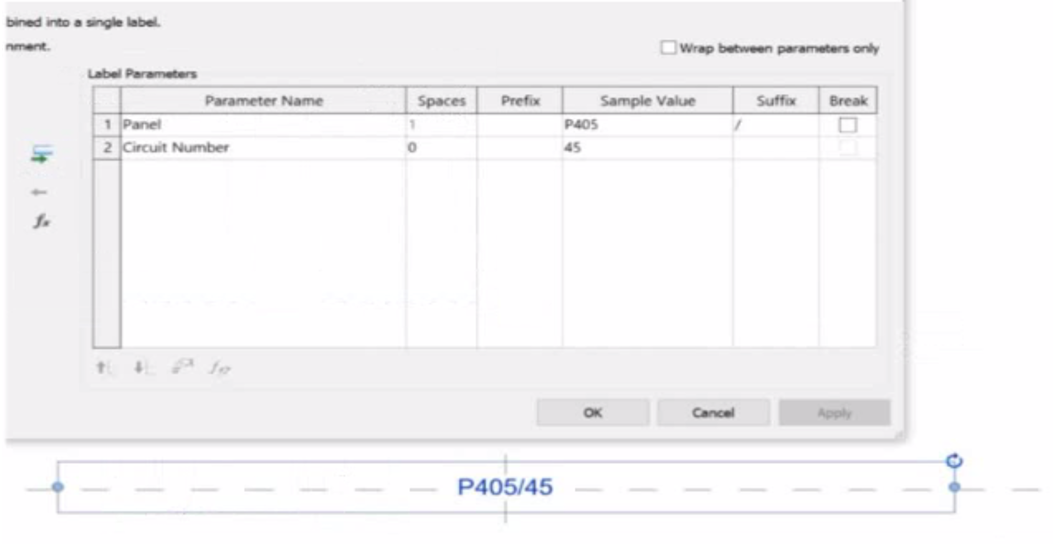
An electrical designer is working on an Electrical Device Panel-Circuit tag. The designer tags a receptacle using the tag properties shown in the exhibit The receptacle is assigned to panel P203 and circuit 2.4.
Which option shows the correct tag?
A)
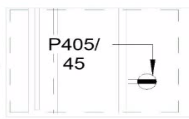
B)
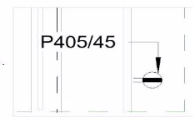
C)
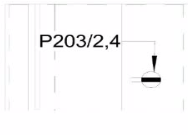
D)
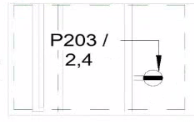
In the exhibit, the Label Parameters for the electrical device tag are configured as follows:

This setup determines how the tag will display in Revit when applied to any device. Specifically:
The Panel parameter (P203 in this case) will be shown first.
A ''/'' separator follows because it's assigned as the suffix for the Panel parameter.
The Circuit Number (2,4) is displayed immediately after the slash, with no extra spaces or line breaks.
Since the Break column is unchecked, the values will appear on one continuous line, not split across lines.
Revit documentation for tag creation confirms this behavior:
''When defining label parameters in a tag family, the Prefix and Suffix fields control text that appears before or after the parameter value, while the Break checkbox controls whether the text wraps to a new line.''
Therefore, when the tag is applied to a receptacle on panel P203 and circuit 2,4, the final formatted text will be:
P203/2,4
This corresponds exactly to option B, where the panel and circuit appear on the same line separated by a slash, with no spaces or line breaks.
A project is almost at the end of design. The electrical designer needs to make sure electrical loads as reported by load summaries accurately reflect all modeled loads. How should a designer view a list of all modeled electrical connectors that are not connected to a circuit?
In Autodesk Revit Electrical Design, ensuring that all electrical connectors are properly connected to circuits is critical to obtaining accurate load summaries and panel schedules. When nearing project completion, designers must confirm that every load (e.g., lighting fixture, power receptacle, or equipment) is associated with a circuit.
The Show Disconnects command is specifically designed to identify any electrical components whose connectors are not associated with a circuit or power system.
According to the Autodesk Revit MEP User's Guide (Chapter: Electrical Systems -- Checking Electrical Circuits):
''The Show Disconnects tool allows designers to visually identify elements in a project that contain electrical connectors not currently assigned to any circuit. Using this tool, Revit highlights unconnected components, helping to ensure load summaries and panel schedules accurately reflect all modeled elements.''
The command is found under Analyze tab Electrical panel Show Disconnects. It highlights any devices---such as lighting fixtures, receptacles, or equipment---that are not circuited, enabling correction before final load calculations are performed.
Other options explained:
A . Check Circuits: Verifies that existing circuits are complete, but it does not identify unconnected components.
B . System Browser: Lists systems hierarchically but does not flag disconnected devices.
C . Circuit Schedule: Displays circuit data only for connected components.
Hence, to identify unconnected elements before finalizing design documentation, the correct tool is Show Disconnects.
References:
Autodesk Revit MEP 2011 User's Guide, Chapter 45: Analyzing Electrical Circuits, pp. 1034--1036.
Autodesk Revit 2020 Help, ''Show Disconnects -- Identify Elements Not Assigned to Circuits.''
An electrical designer is creating an electrical equipment family which will host conduit that can be modeled from any point on a specific side of the equipment. How should this be accomplished?
To allow conduit to be modeled from any point on a specific side of the electrical equipment, the most accurate method is to use the 'Surface Connector'. This method enables the designer to place a surface-based conduit connector on a specific face of the equipment family. Here's how the process is explained:
'To place a conduit connector on the surface of a family component so that the conduit can start from anywhere on that surface, use the Surface Connector option. This connector attaches to the selected face of the equipment, allowing conduit to be drawn directly from any point on the selected face in the project environment.'
'Click Conduit Connector, then choose Surface Connector, and select the face where the conduit should connect. This gives flexibility in modeling, especially for equipment requiring multiple connection points across a single face or allowing freedom of routing.'
This process is especially beneficial in custom electrical equipment families where conduits must originate from arbitrary points along a flat side---ensuring both parametric flexibility and coordination ease within the project environment.
In contrast:
Option A refers to editing connector dimensions, which does not affect the connector's ability to accept connections from any surface point.
Option B uses Individual Connector which limits the connection to a specific point, not the whole face.
Option D refers to changing connector type in the Properties palette, which doesn't impact connector location or coverage on a face.
Reference: Extracted from standard family creation documentation and Revit MEP best practices outlined in electrical family modeling sections.
An electrical designer is adding lights to a project model. The coiling grids arc located in a linked Revit model. How are these lights affected if the grid patterns move?
When working in Autodesk Revit for MEP Electrical Design, lighting fixtures can be either hosted (such as ceiling-hosted or wall-hosted) or non-hosted. The movement of lighting fixtures in relation to linked model elements---like ceiling grids---is determined by the hosting condition and alignment constraints applied to those elements.
According to the Revit MEP User's Guide (Chapter 24 ''Ceilings'' and Chapter 50 ''Rendering''), a ceiling is a level-based element. You can create it on a specified level and host ceiling-based families such as lighting fixtures. When a ceiling is modified or repositioned, the hosted lighting fixtures will move with the ceiling itself, maintaining their relationship to the host surface. However, when ceiling grid patterns are changed or moved in a linked Revit model, the movement of those grid patterns does not automatically propagate to hosted elements in the electrical model unless those elements are directly linked or constrained to a movable reference plane.
As described:
''Ceilings are level-based elements... When you create a ceiling, you can host components such as lighting fixtures on its face. Hosted elements remain associated with their host even if the ceiling is modified.''
And further in the glossary section:
''Rehost: To move a component from one host to another. For example, you can use the Pick New Host tool to move a window from one wall to another wall.''
This confirms that a hosted light fixture maintains its attachment to the host element (the ceiling) but not to the grid pattern itself. Grid movement within a linked ceiling model does not alter the position of lights unless they are manually re-hosted or alignment-locked directly to a specific geometry within the host model.
Therefore, the correct interpretation is that when ceiling grid patterns move within a linked Revit model, the lights placed in the electrical model do not follow the grid pattern movement automatically. They remain stationary relative to the ceiling surface, provided they are hosted correctly.
This behavior reflects Revit's parametric relationships --- ''hosted elements maintain dependency only on their host, not on graphical references like grids unless locked via constraints.''
References:
Autodesk Revit MEP User's Guide, Chapter 24 ''Ceilings'', pp. 579--583
Autodesk Revit MEP User's Guide, Chapter 50 ''Rendering'' (Lighting Fixtures and Hosts)
Autodesk Revit Glossary: ''Rehost'' definition, p. 2037
Revit Electrical Design Parametric Model Behavior -- Revit MEP Essentials
Refer to exhibit.
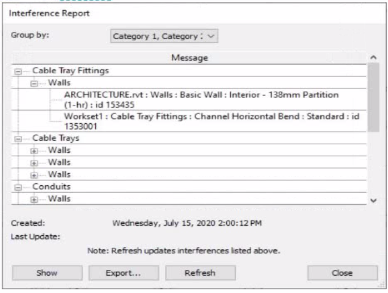
An electrical designer runs an interference check and reviews the Interference Report.
How can the designer select the cable tray fitting referenced in the interference to resolve the clash?
When performing an Interference Check in Revit, the Interference Report dialog is generated. This report lists all interfering elements found. To select or locate a specific element---such as a cable tray fitting---the designer must use the Show command.
The official workflow from the Revit documentation clearly states:
''To see one of the elements that is intersected, select its name in the Interference Report dialog, and click Show. The current view displays the problem.''
This confirms that selecting the row that lists the interfering cable tray fitting and clicking Show will highlight and activate the view containing the clashing element---allowing it to be modified or moved to resolve the conflict.
This means the designer must:
Click the row containing the cable tray fitting in the Message list.
Click Show to highlight and locate it in the model view so the clash can be addressed directly.
This reference explicitly confirms that Show is the correct method to select the clashing cable tray fitting from the interference results in order to resolve the conflict.
Exam domains verified against: Official AutoDesk RVT_ELEC_01101 exam guide, last checked October 2026.
Set up electrical equipment, fixtures, and devices using panelboards, switchgear, transformers, and specialized device families such as lighting and fire alarm. Create and edit circuits including equipment branches, low voltage systems, and switch systems using the System Browser to organize and locate specific components.
Apply view templates, visibility overrides, and graphic settings to organize electrical drawings and schedules. Add annotations including equipment tags, device tags, keynotes, and note blocks to communicate design intent and specifications across sheets and revisions.
Configure MEP connectors and define family types for loadable and system families including conduit and cable tray. Build parametric families with constraints, reference planes, and formulas, then create annotation families and tags to document and label electrical elements.
Sample question from this domain above: Q6
Calculate electrical loads by specifying load values, power factors, and load classifications. Perform conceptual lighting analysis using Revit spaces and light sources to estimate illumination levels and validate design performance.
Link and manage CAD files, PDFs, and images at proper positions and coordinate with other disciplines. Work in worksharing environments by managing worksets, borrowing and relinquishing elements, and running interference checks to resolve clashes before construction.
Common questions about the exam itself

